¶ Connecting AI Assistants to doBoard via MCP
doBoard has its own MCP server, so AI assistants such as Claude, ChatGPT, Codex, Cursor and GitHub Copilot can read your doBoard data and work with it in context. Ask an assistant in plain language, for example "What's left in the current sprint?" or "Summarize the discussion in task #123". It looks the answer up in doBoard.
- Connect any MCP-compatible AI assistant with a personal token.
- Access is read-only. An assistant can't create, change or delete anything in doBoard.
- You choose which projects each token can see.
- Tokens are valid for up to 90 days and can be revoked at any time.
¶ What Can an AI Assistant Do with doBoard?
The assistant can find and read tasks, comments, assignees, statuses, due dates and sprints in the projects you allow. Typical uses:
- Get a summary of a project, a sprint or a long task discussion.
- Find tasks assigned to you or to a teammate.
- Prepare a status report or stand-up notes.
- Find related tasks and the context behind a decision.
¶ Step 1. Create an MCP Token
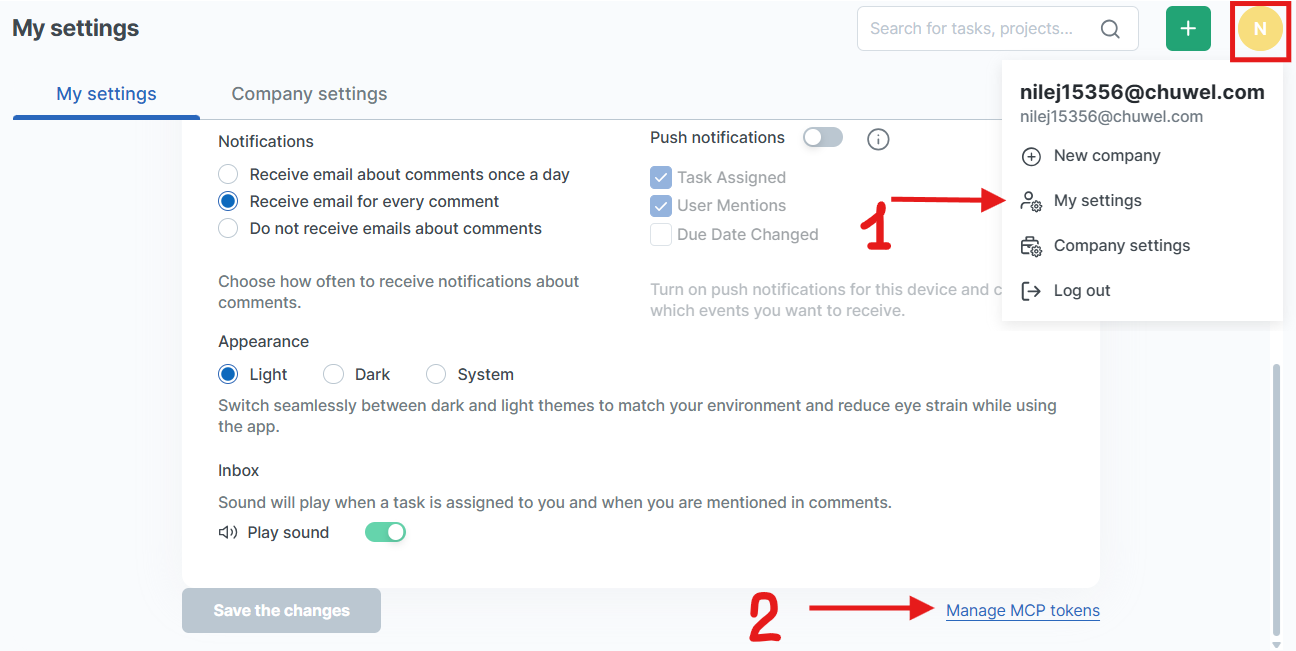
- Click your profile picture → My settings.
- Scroll down and click Manage MCP tokens.
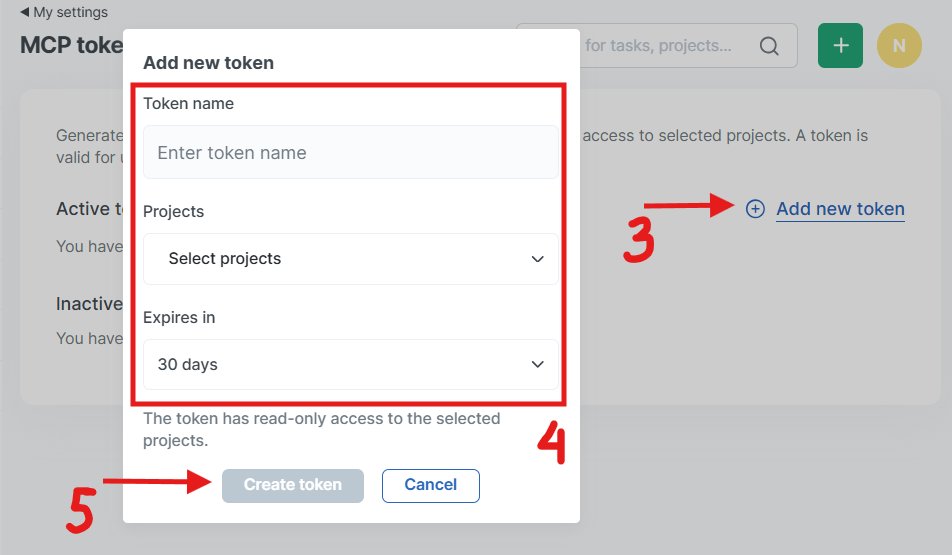
- Click Add new token.
- Fill in the form:
- Token name: something that tells you where the token is used, e.g. "Claude" or "Cursor — work laptop".
- Projects: select the projects the assistant is allowed to read.
- Expires in: 7, 30, 60 or 90 days.
- Click Create token and copy the token right away.
Important: The token is shown only once. After you close the page, you can't see it again. If you lose it, revoke it and create a new one.
You will also need the doBoard MCP server URL. It's the same for everyone:
https://api.doboard.com/mcp/
doBoard uses Bearer token authentication. Every client below sends the token in this header:
Authorization: Bearer YOUR_DOBOARD_TOKEN
In all examples, replace YOUR_DOBOARD_TOKEN with your token.
¶ Step 2. Connect Your AI Assistant
¶ Claude (claude.ai and Claude Desktop)

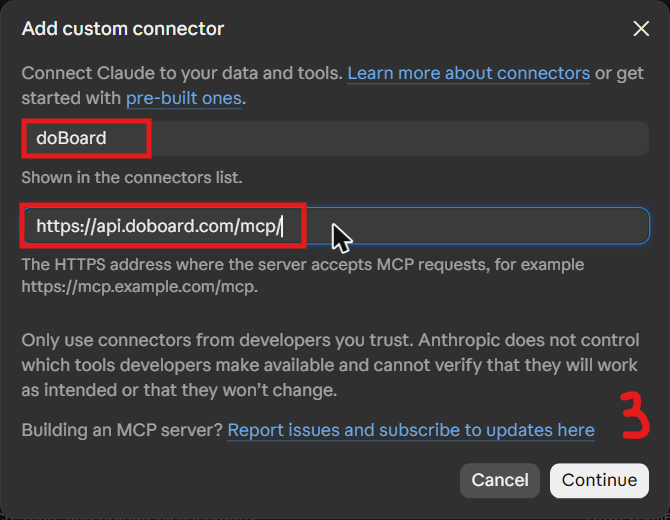
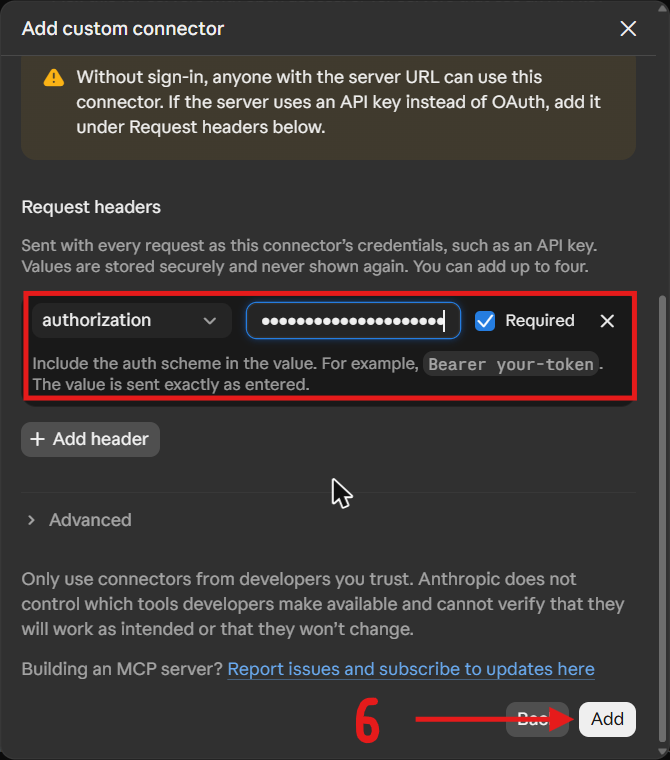
- Open claude.ai and go to Customize → Connectors.
- Click + Add → Add custom connector.
- Enter the name
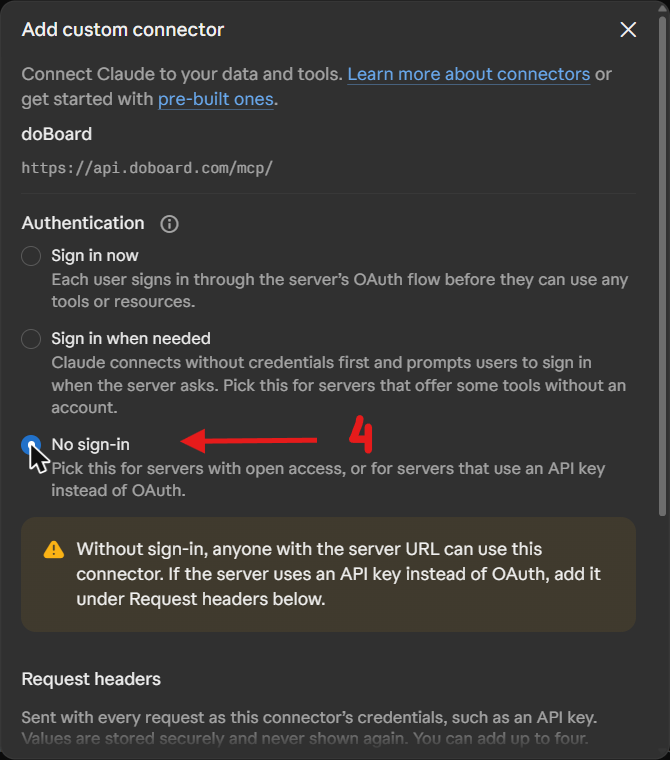
doBoardand the URLhttps://api.doboard.com/mcp/. Click Continue. - Under Authentication, choose No sign in.
- Under Request headers, add a header:
- Name:
Authorization - Value:
Bearer YOUR_DOBOARD_TOKEN
- Name:
- Click Add.
To use it in a chat, click + at the bottom left of the message box → Connectors → turn on doBoard.
On Claude Team and Enterprise plans, only an Owner can add custom connectors (Organization settings → Connectors), and everyone in the organization shares the token set in the connector. Use a token that only covers projects the whole team is allowed to see.
¶ Claude Code
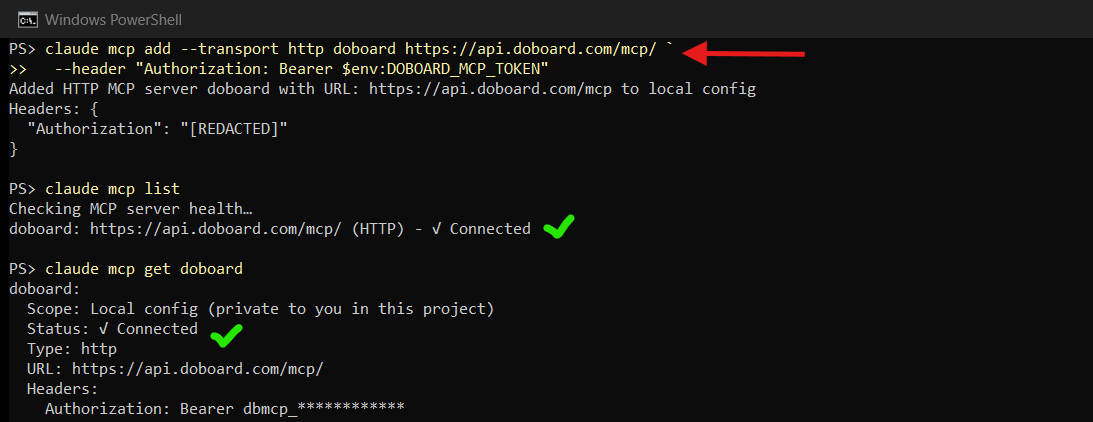
Run in the terminal:
claude mcp add --transport http doboard https://api.doboard.com/mcp/ --header "Authorization: Bearer YOUR_DOBOARD_TOKEN"
To check the connection, run claude mcp list or type /mcp inside Claude Code.
¶ ChatGPT Desktop App and Codex
The ChatGPT desktop app, Codex CLI and the Codex IDE extension share one configuration file.
Open the file, or create it if it doesn't exist:
- Windows:
%USERPROFILE%\.codex\config.toml - macOS / Linux:
~/.codex/config.toml
Add:
[mcp_servers.doboard]url = "https://api.doboard.com/mcp/"bearer_token_env_var = "DOBOARD_MCP_TOKEN"
Save the token in the DOBOARD_MCP_TOKEN environment variable:
- Windows (PowerShell):
setx DOBOARD_MCP_TOKEN "YOUR_DOBOARD_TOKEN" - macOS / Linux: add
export DOBOARD_MCP_TOKEN="YOUR_DOBOARD_TOKEN"to~/.zshrcor~/.bashrc
Restart the app or the terminal. Run codex mcp list (or /mcp in Codex) to check that doBoard is listed.
ChatGPT in the browser (chatgpt.com) can't be connected with a token yet: its custom connectors don't support Bearer tokens. Use the ChatGPT desktop app or Codex instead.
¶ Cursor
Open ~/.cursor/mcp.json (on Windows: %USERPROFILE%\.cursor\mcp.json), or create it.
Add:
{"mcpServers": {"doboard": {"url": "https://api.doboard.com/mcp/", "headers": {"Authorization": "Bearer YOUR_DOBOARD_TOKEN"}} }}
Save the file and restart Cursor. In Cursor Settings → MCP, check that doBoard is enabled.
¶ GitHub Copilot in VS Code
Open ~/.copilot/mcp-config.json (on Windows: %USERPROFILE%\.copilot\mcp-config.json), or create it.
Add:
{"mcpServers": {"doboard": {"type": "http", "url": "https://api.doboard.com/mcp/", "headers": { "Authorization": "Bearer ${DOBOARD_MCP_TOKEN}" }, "tools": ["*"] }}}
Save the token in the DOBOARD_MCP_TOKEN environment variable (see the Codex section above) and restart VS Code.
Open Copilot Chat in Agent mode and check that the doBoard tools are listed.
¶ Other AI Assistants
Any other MCP client (Windsurf, Cline and others) works too if it supports remote HTTP MCP servers with custom headers. Use the same two values:
- URL:
https://api.doboard.com/mcp/ - Header:
Authorization: Bearer YOUR_DOBOARD_TOKEN
¶ Step 3. Check the Connection
Start a new chat and ask:
Which doBoard projects can you see? Show me the latest tasks in one of them.
If the assistant lists your projects and tasks, everything works.
¶ Managing Tokens
All your tokens are on My settings → Manage MCP tokens:
- Active tokens: name, projects, access type, creation date and last use.
- Inactive tokens: revoked and expired tokens. They are kept for history but no longer work.
To revoke a token, delete it from the Active tokens list. Any assistant using it loses access immediately.
Limits:
- Up to 10 active tokens per user in each organization.
- A token can't be valid for longer than 90 days. When it expires, create a new one and update it in your assistant.
- Up to 120 requests per minute per token.
- A token sees only the projects you selected and still have access to. If you lose access to a project, the token loses it too. New projects are not added to existing tokens automatically.
¶ Security Tips
- Treat the token like a password. Don't share it in chats or screenshots, and don't commit it to Git.
- Create a separate token for each assistant or device. Then you can revoke one without breaking the others.
- Give a token only the projects the assistant really needs, and choose the shortest expiration that works for you.
- If a token may have leaked, revoke it right away and create a new one.
- Task and comment text can contain anything people write. Check the assistant's answers before acting on them.
¶ If It Doesn't Work
- 401 Unauthorized: the token is wrong, expired or revoked. Check that the header is exactly
Bearer YOUR_DOBOARD_TOKEN(one space afterBearer). Create a new token if needed. - The assistant doesn't see a project: the project wasn't selected when the token was created, or you no longer have access to it. Create a new token with the right projects.
- Too many requests: the assistant hit the 120 requests per minute limit. Wait a minute and try again.
- The server doesn't appear in the client: restart the app after editing the config file. If you used an environment variable, make sure the app was started after the variable was set.
Maybe these links will also be helpful: