- Creating a tag group
- Editing a tag group
- Assign a tag group to a task
- Deleting a tag group
- Promotion by tag group
- Filtering tasks by tag groups
- Add a tag group to favorites
- Default tag group in a board
Work processes have a sequence of stages. Tag groups are used to make it easier to track the stages of task progress.
Only one tag group can be set for a single task. If you set a second one, the first will be automatically deleted.
Until the tag group is completed, you cannot close the task.
¶ Creating a tag group
Next to the task name, click the “+ label” button, then “New group.”
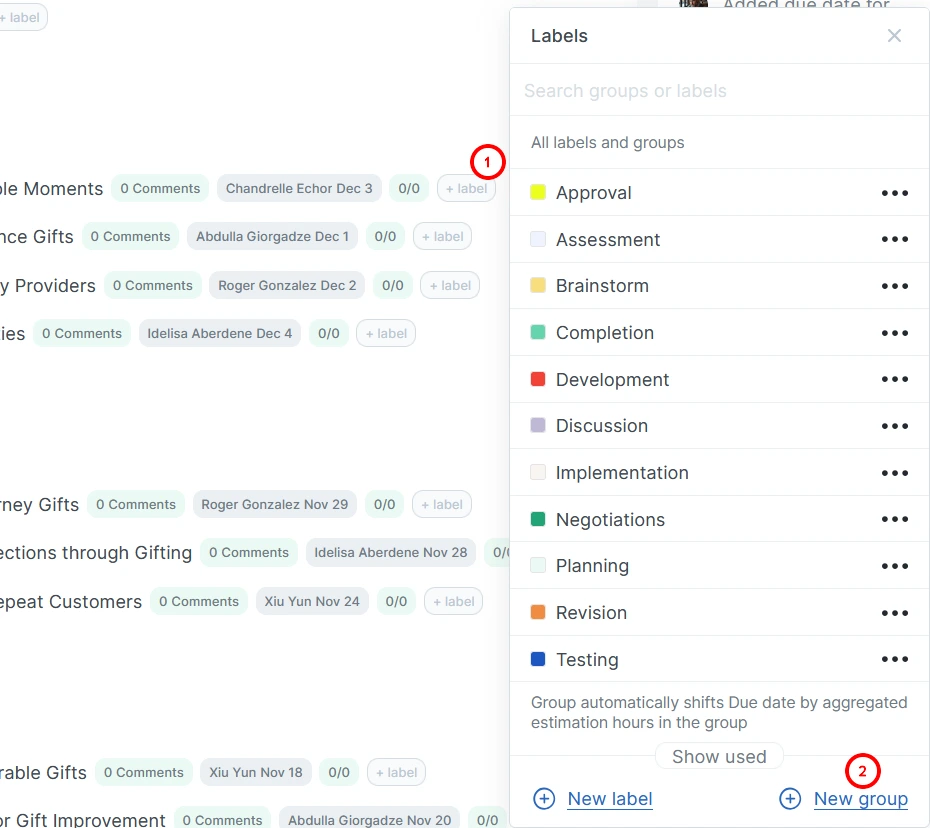
In the window that opens, name the group, select a color, open the spoiler, and select the labels that will be included in the group.
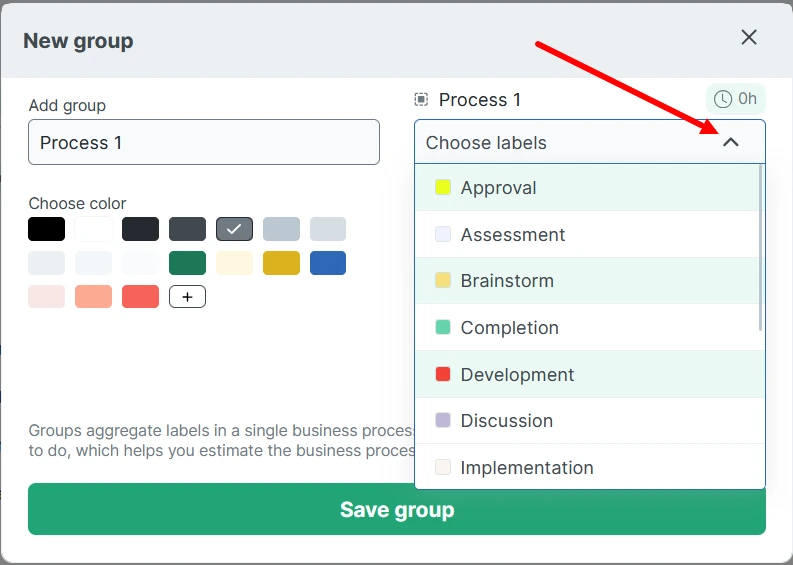
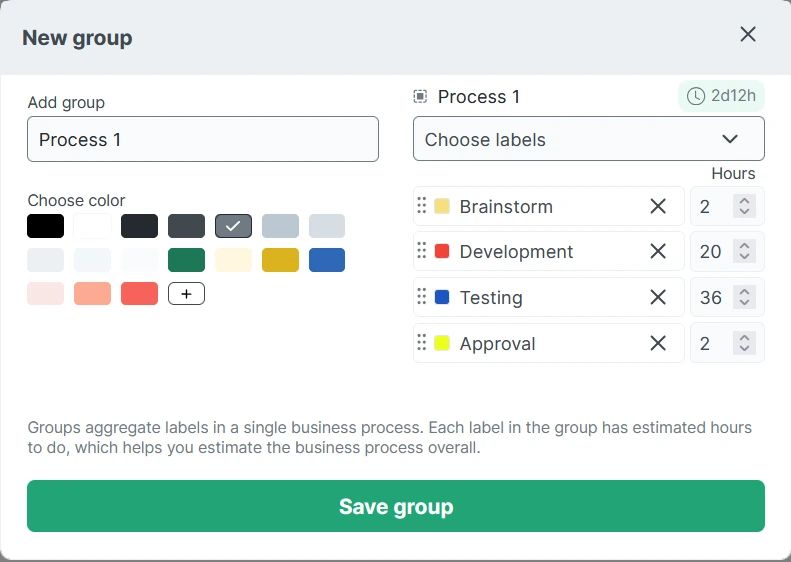
Close the spoiler to see the list of selected labels. You can rearrange them, delete unnecessary ones, and set a time (if needed). Click “Save group.”
¶ Editing a tag group
Next to the task name, click the “+ label” button, find the desired group, and click the three dots next to the group name. Using the drop-down menu, you can:
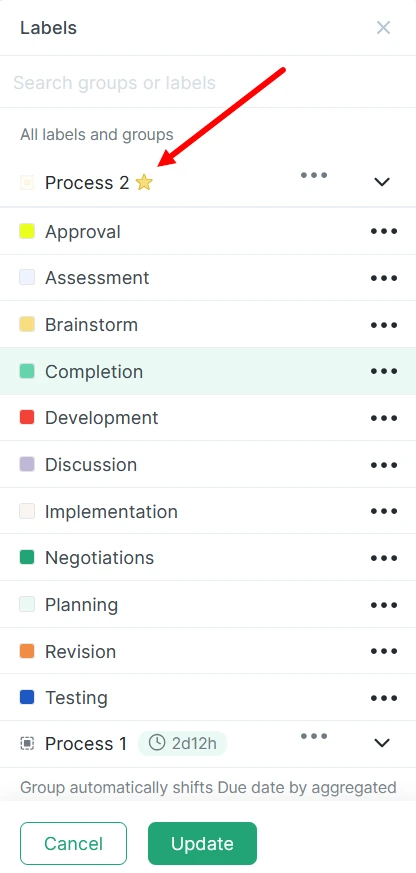
- Add the group to favorites.
- Rename the group.
- Change the color.
- Delete the group.
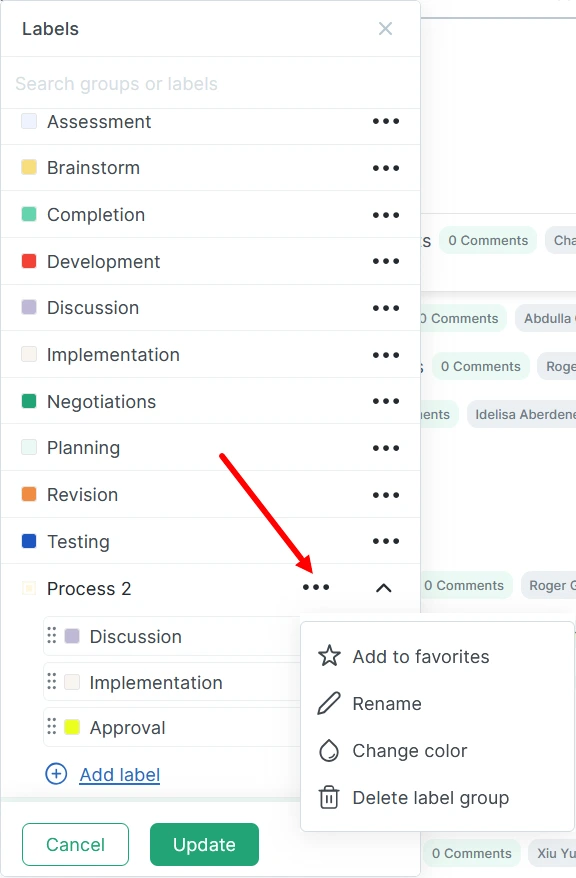
By opening the spoiler, you can:
- Swap labels.
- Add/delete a label.
- Change the time of the labels.
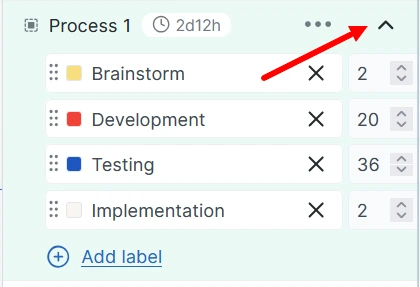
All changes are applied immediately; you do not need to click the “Update” button.
¶ Assign a tag group to a task
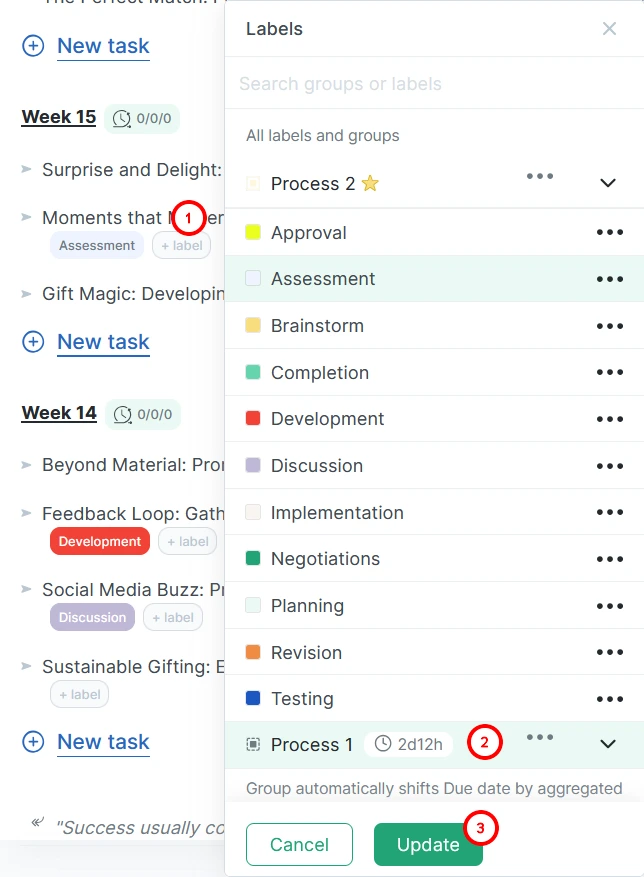
Next to the task name, click the “+ label” button, select a label group from the list, and click “Update.”
¶ Deleting a tag group
To remove a tag group from a task, hover over it and click the cross in the corner.
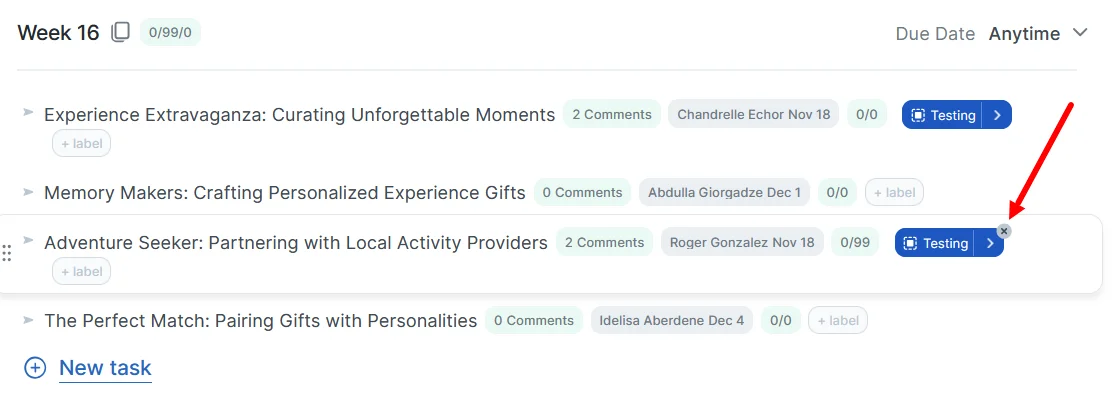
If you want to remove a tag group from an organization, see Editing a tag group.
¶ Promotion by tag group
Click the right arrow on the group icon. This will move the task to the next stage. At the same time, you will be prompted to write a comment.
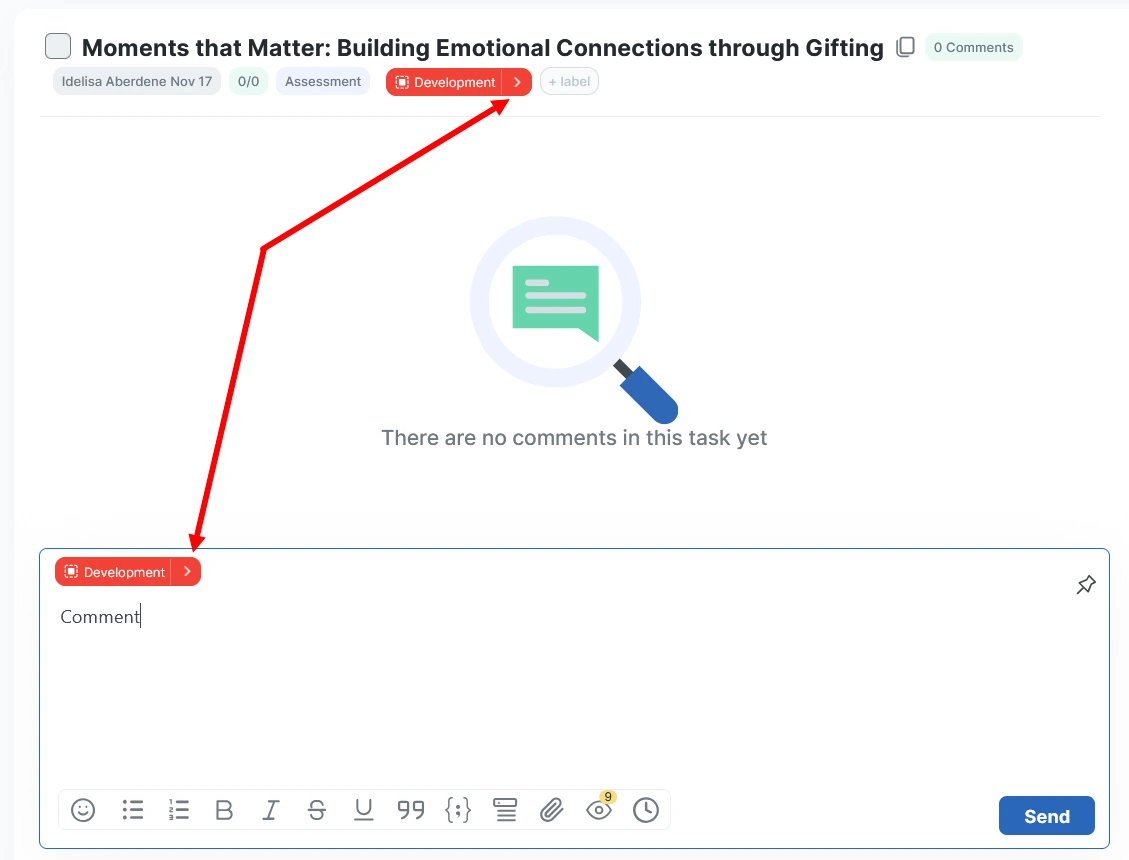
Alternatively, you can click the square on the group icon and move to any stage (even go back).
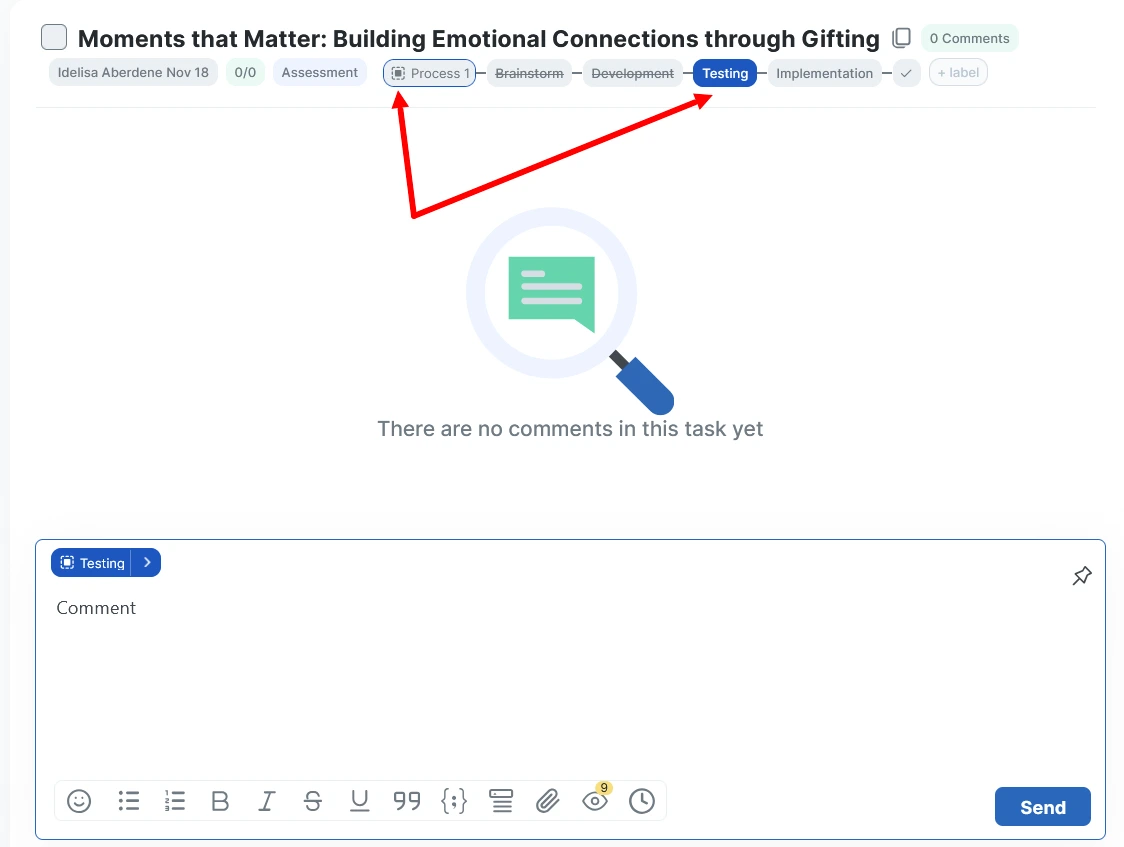
Once the group is complete, you will be able to close the task.
¶ Filtering tasks by tag groups
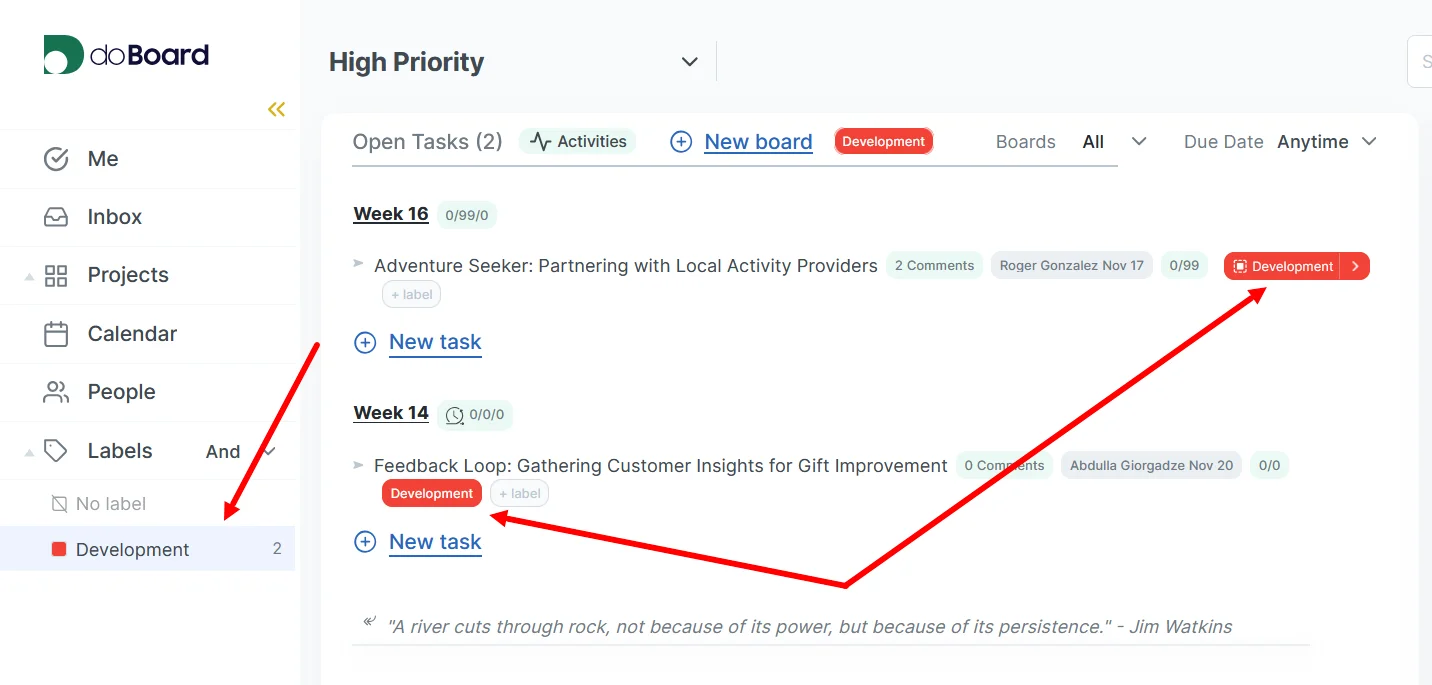
For information on filtering tasks by labels, see this section. The label currently set in the tag group is also taken into account in the calculation, and the filter is also applied to it.
¶ Add a tag group to favorites
If you want to add a tag group to your favorites, see Editing a tag group. This group will now always appear at the top of the list.
¶ Default tag group in a board
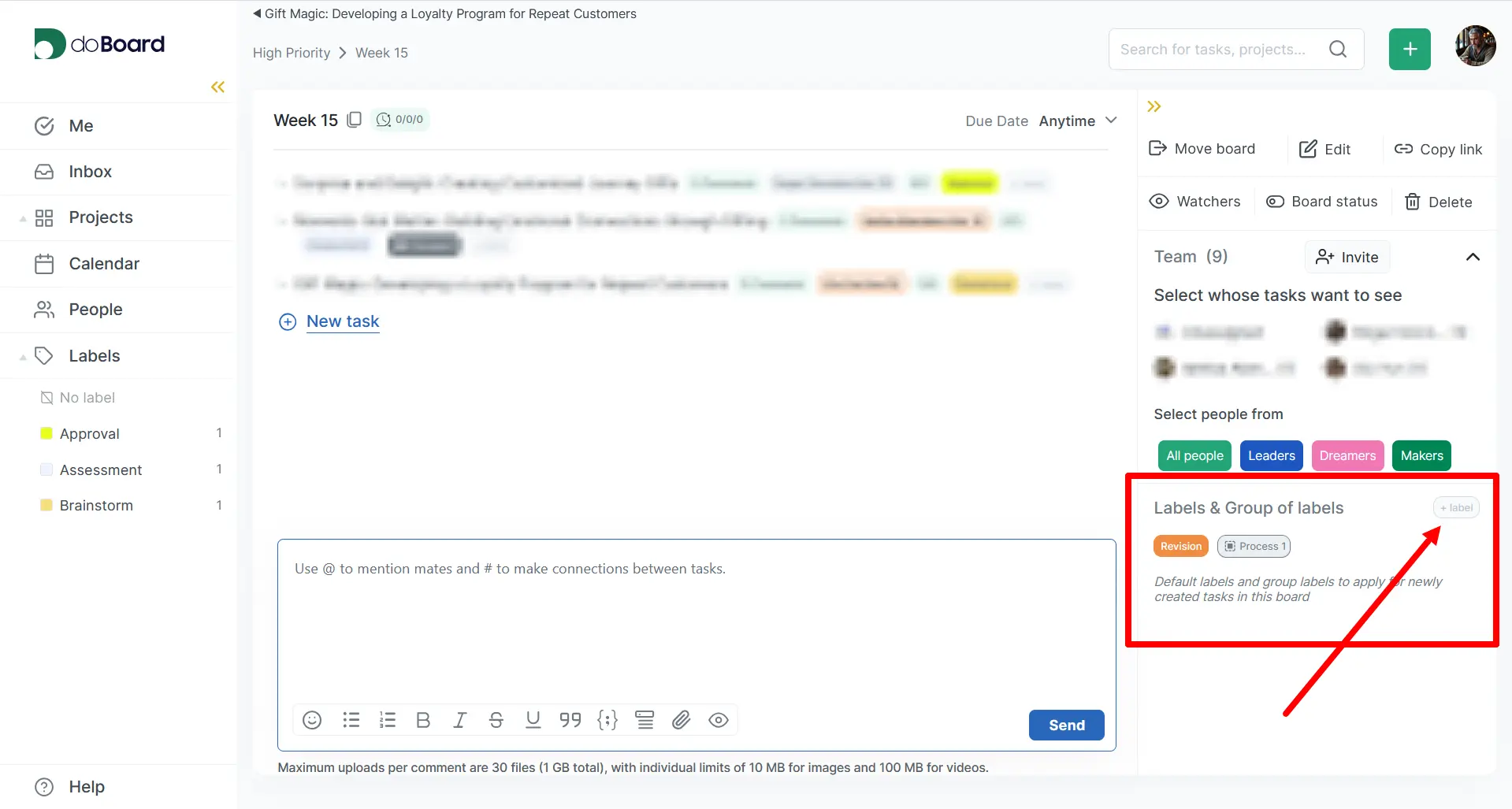
On the board page, you can set a default tag group. When you create a new task on the board, this group will be automatically assigned to it.
Learn more about doBoard: