¶ Cross-Project Linking
To help you manage complex tasks, we added the Cross-Project Linking feature. You can connect tasks across different projects to establish relationships and dependencies. Each task has a “Links” section on the right.
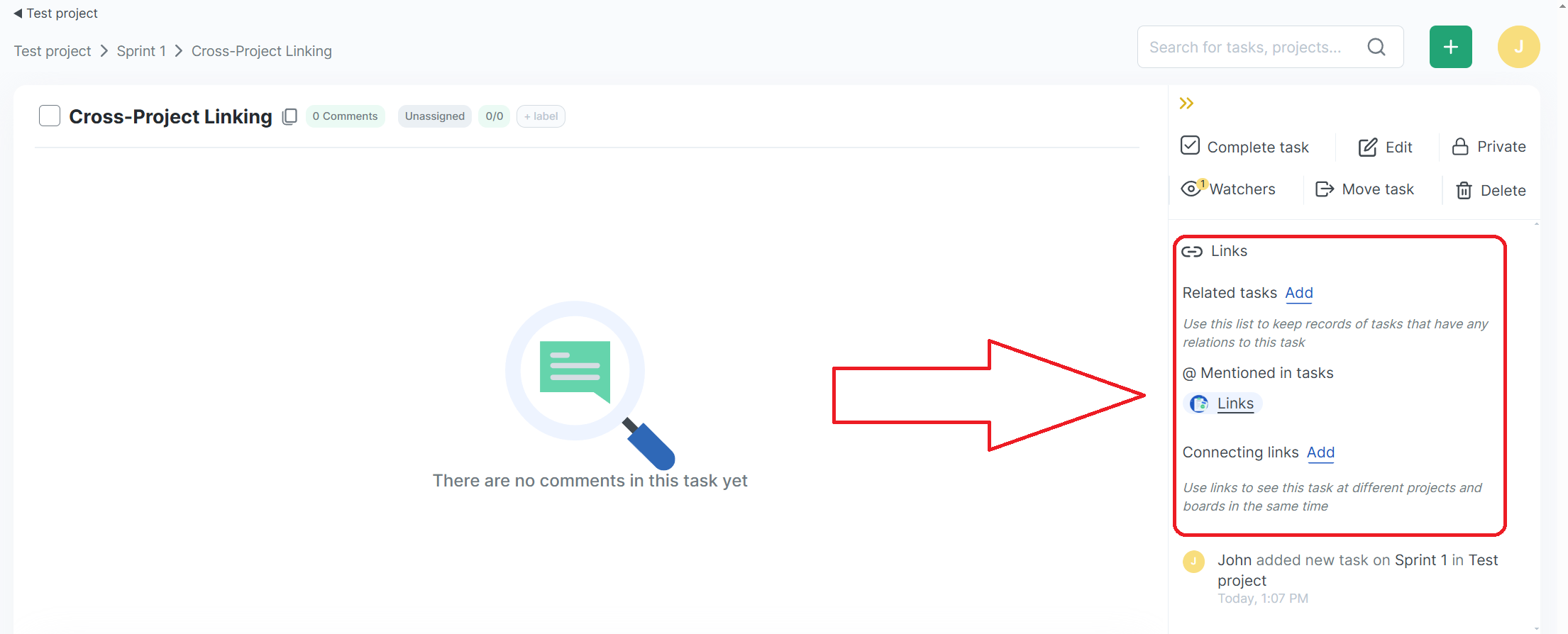
Three types of connections can be used:
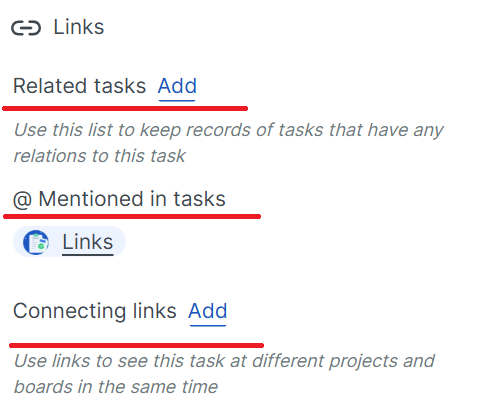
- Related tasks. Manually attach any task.
- Mentioned in tasks. Automatically added mentions of this task.
- Connecting links. Create links to this task in different locations.
¶ Related tasks
You can manually add a link to any other task or project. Press the ‘Add’ button to add a task.
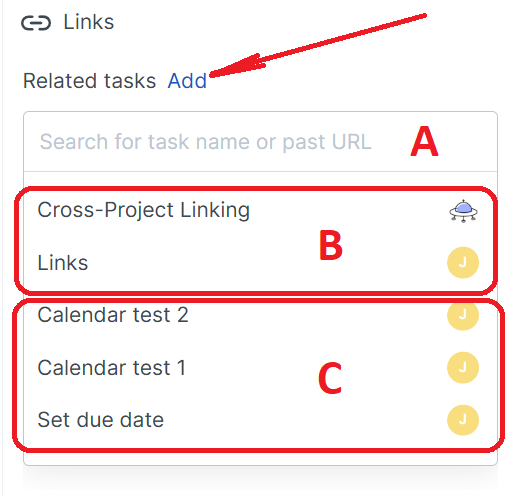
A - Enter a task name to search for it.
B - Automatically selected links to another project and its tasks.
C - Automatically selected links to the current project tasks.
¶ Mentioned in tasks
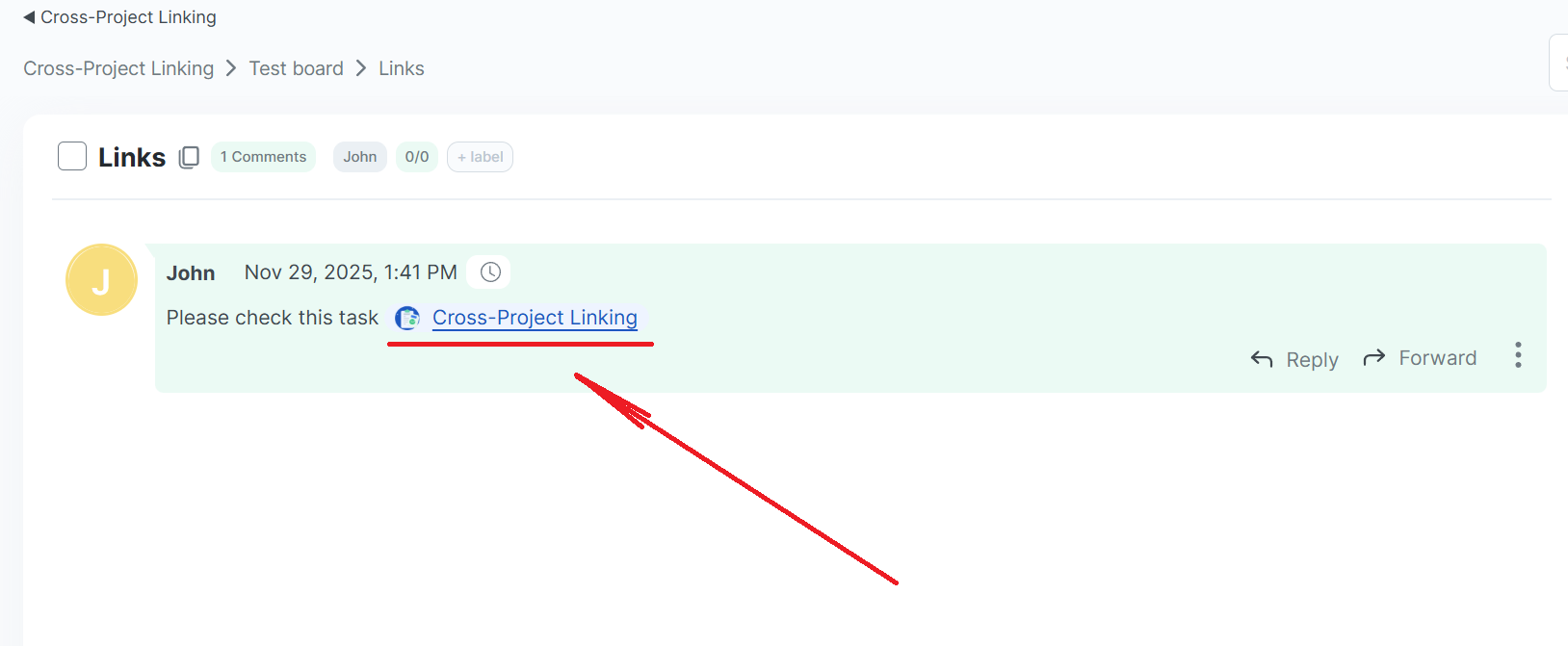
Here you can find automatically added mentions of this task in any other task. If someone sends a message with the link to the task, the cross-link is added to the mentioned task.
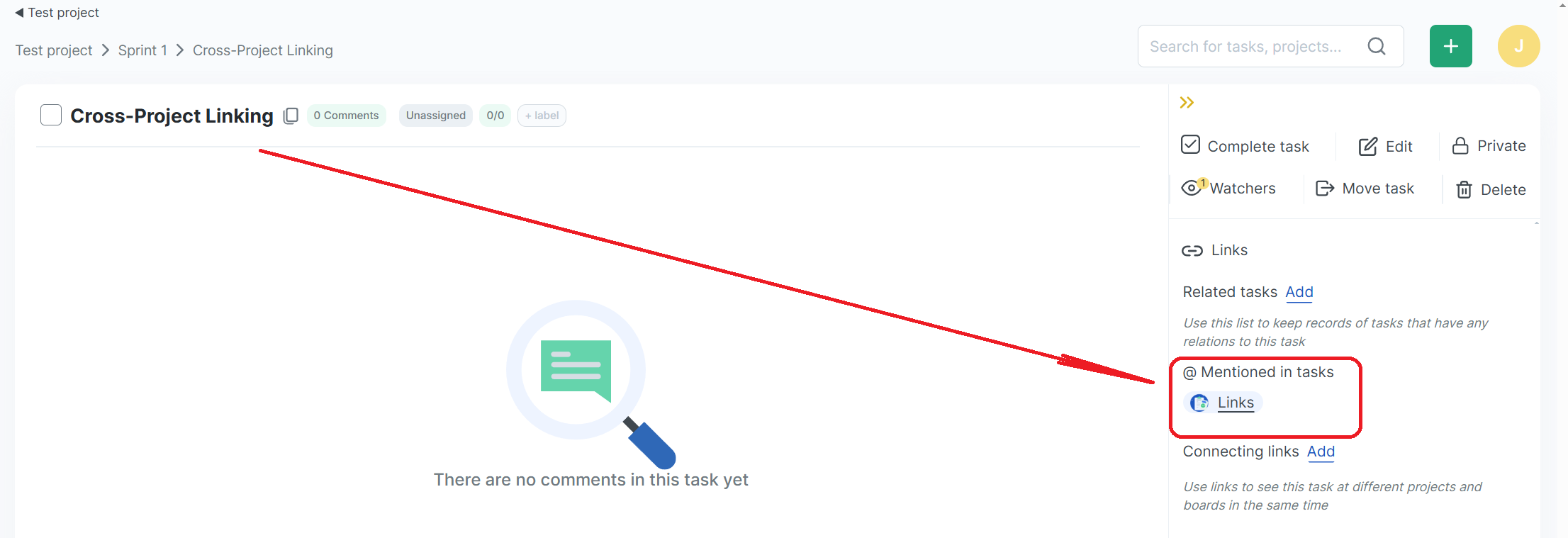
¶ Connecting links
You can add a link to this task in different locations. At the same time, the task itself is not moved from the current board. Press the ‘Add’ button to add a link.
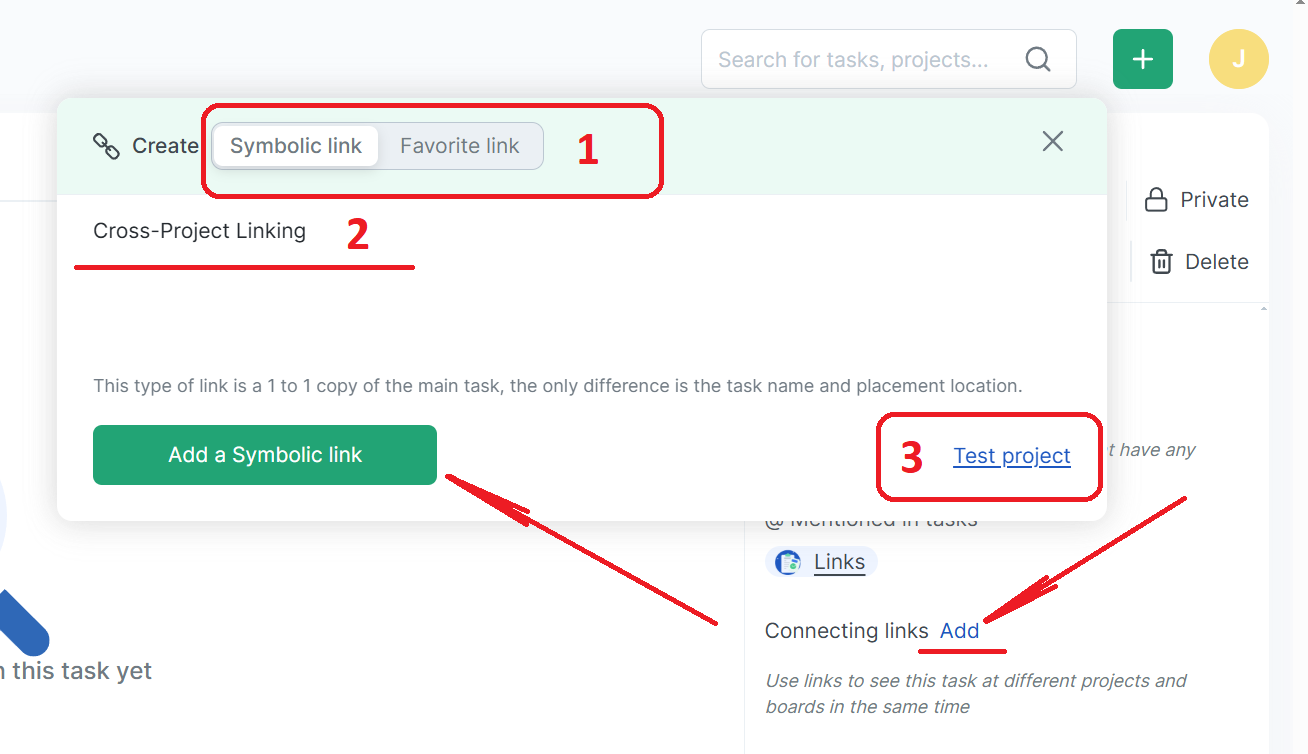
1 - Link type.
Symbolic link - fully connected link. Has the same assigned person, due date, and label. Changing these attributes will reflect on the original task.
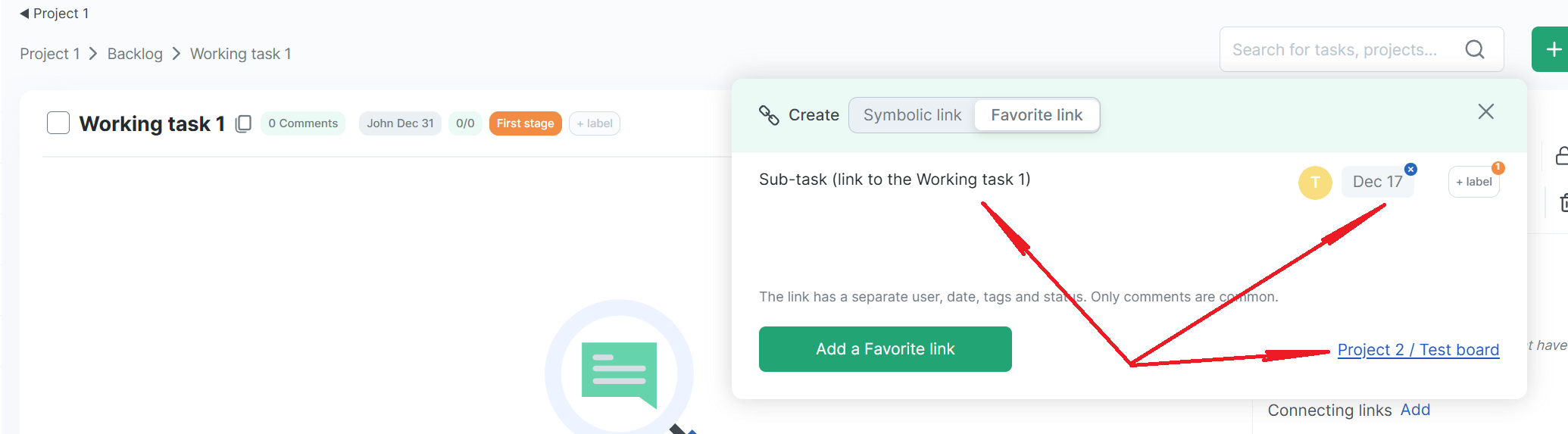
Favorite link - independent link. May have its own assigned person, due date, and label. Changing these attributes will not reflect on the original task.
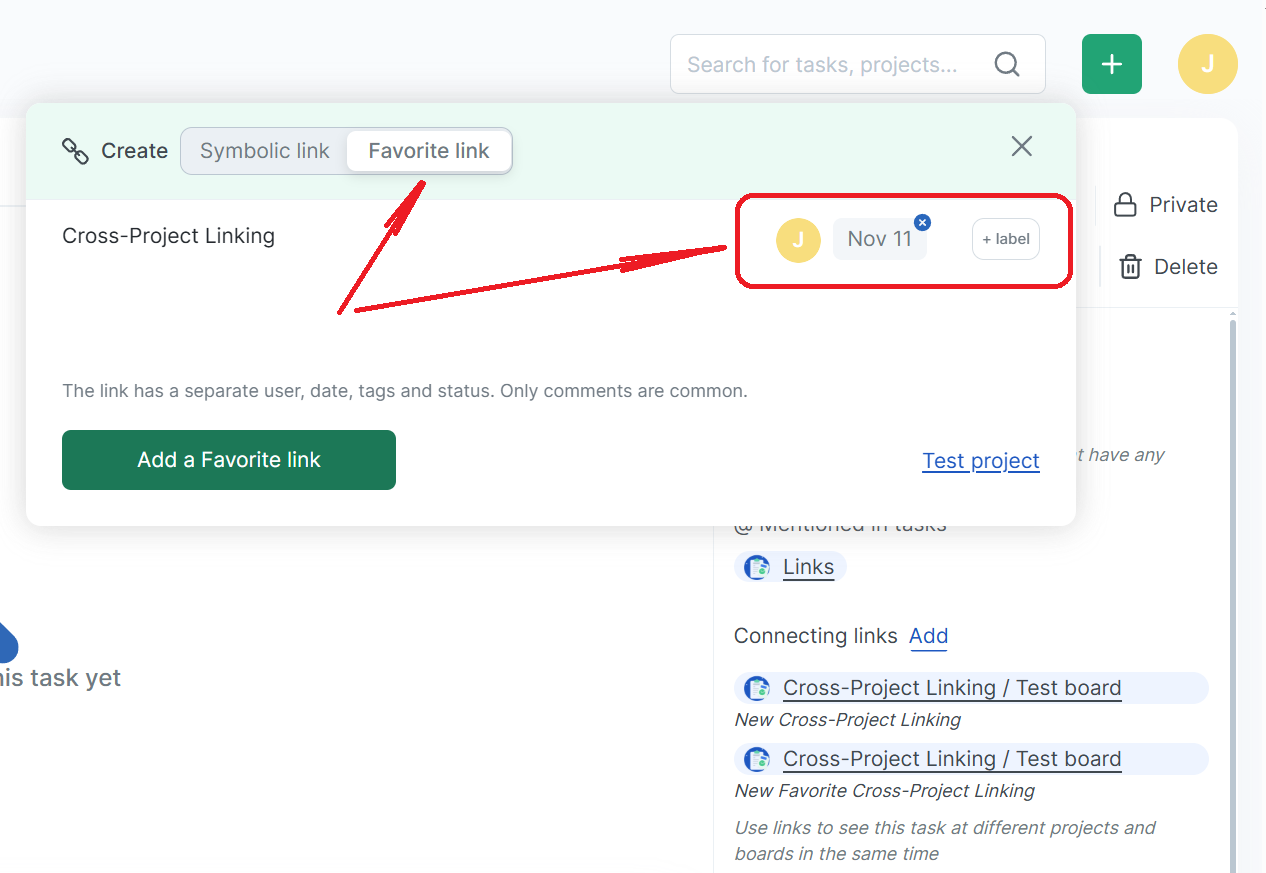
2 - Link's name. It can be arbitrary.
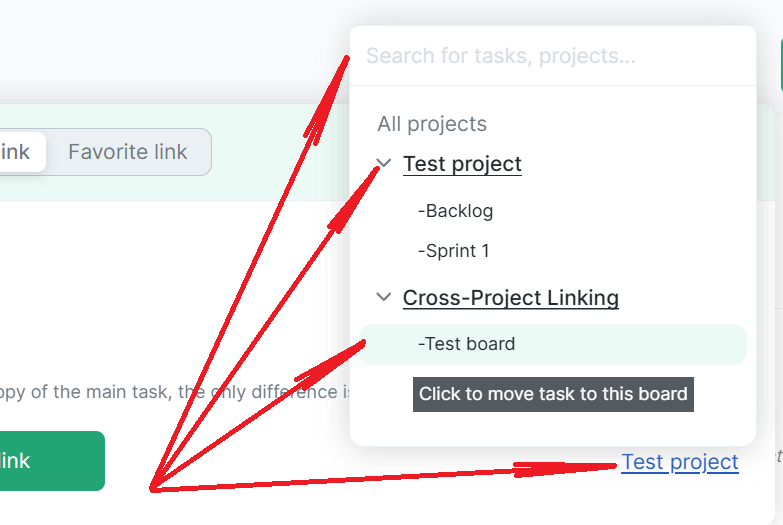
3 - Link's location. Any available project or board can be selected.
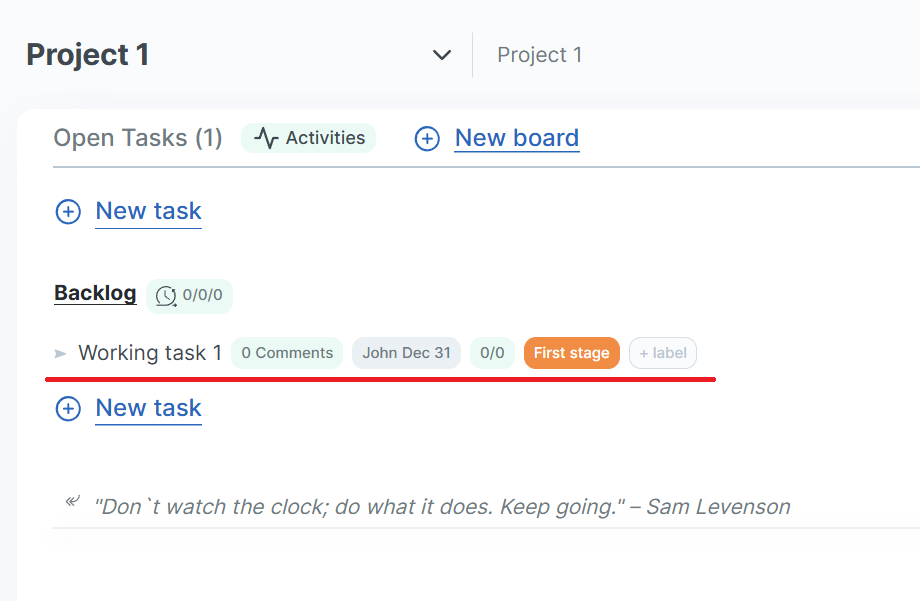
For example, you have a task named Working task 1 in Backlog board of Project 1:
You can create a favorite link to this task in Test board of Project 2 with different name, assigned person, due date, and label:
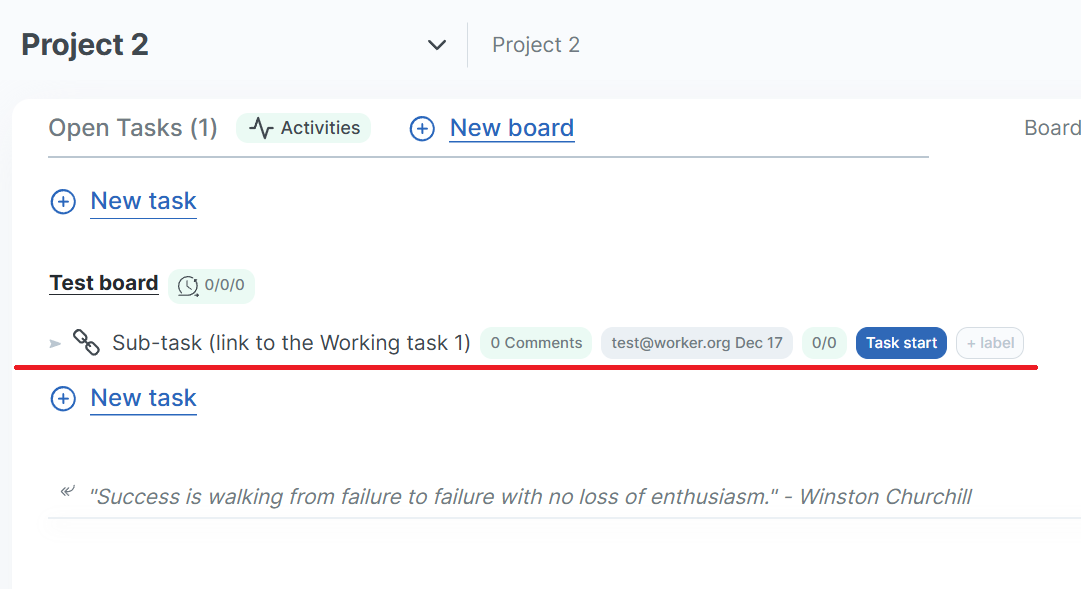
The link will be added to the Test board of Project 2:
Maybe these links will also be helpful: